Showing posts with label yanhua mini acdp bmw. Show all posts

Monday, 11 November 2024

Yanhua Mini ACDP ICP Attempt To Start Mode BMW CAS3++ AKL

This is a tutorial on how to program BMW CAS3++ all keys lost in ICP attempt to start mode with Yanhua ACDP-2 BMW. The procedure mainly works on Module 1.


Power on the Mini ACDP 2 device.

Confirm the ACDP device has been bound.


Mini ACDP>> BMW >> CAS1~4 >> CAS3/CAS3+ >> ICP Mode >> MC9S12XDP512 >> IMMO

Click Help to complete the connection between ACDP and CAS ECU.


Step1. Read the CAS data

Please use the ACDP standard power adapter(voltage+ 12V, current > = 2.5A)

Please follow the wiring diagram to connect the ACDP. BDM adapter and CAS ECU.

Confirm vehicle info, click OK.

The backup file succeeded.

yanhua-mini-acdp-icp-attempt-to-start-mode-bmw-cas3-akl-1

yanhua-mini-acdp-icp-attempt-to-start-mode-bmw-cas3-akl-2

yanhua-mini-acdp-icp-attempt-to-start-mode-bmw-cas3-akl-3

yanhua-mini-acdp-icp-attempt-to-start-mode-bmw-cas3-akl-4

Step2. Generate Dealer Keys

All-key-lost(try 16 times or 64 times) >> OK

Connect the ACDP and BAV adapter according to the diagram and insert a blank key.

Verify key info.

Selected the " Original " data, and paid attention to the date and time of backing up files.

Verify vehicle info.

Select a blank key position >> Confirm if the current key is a Keyless go


Is the current key a Keyless Go?

Warning:

1. Only 2 Keyless Go are allowed for one car.

2. Please disable or delete the lost Keyless Go before adding a new Keyless Go.

3. Ensure there is one Keyless Go at most in the CAS before generating the key.

4. The Keyless Go will not be unlocked once generated.

5. After the keyless go is successfully generated, the method of gate learning cannot be used, and the generated data needs to be written back to the CAS for the keyless to take effect.


Remote key >> OK

The current CAS version type is the CAS3+ISTAP4* version. Generating the key requires up to 64 attempts. Please enter the number of current attempts.

Click on settings >> Enter 1 >> OK

Generate dealer key completed.


Load CAS onto the vehicle and verify the key function, there are 2 ways of operation at this time:

1. If the newly generated key can open the switch, click OK and follow the steps.

2. If the key cannot open the switch, remove CAS. Learn the key by reverse-writing ALL data to ensure that the key can open the switch.

Here's clicking "Cancel".

The backup file succeeded.


Return to the previous step.

Remove the CAS from the car.

yanhua-mini-acdp-icp-attempt-to-start-mode-bmw-cas3-akl-5

yanhua-mini-acdp-icp-attempt-to-start-mode-bmw-cas3-akl-6

yanhua-mini-acdp-icp-attempt-to-start-mode-bmw-cas3-akl-7

Step3. Write CAS data

OK >> OK

Please follow the wiring diagram to connect the ACDP, BDM adapter, and CAS ECU.

OK >> Selected data named after "ALL_LOST".

Write data succeeded.

Load CAS back into the car, and verify that the key can start the car.

yanhua-mini-acdp-icp-attempt-to-start-mode-bmw-cas3-akl-8

Go back to Step 2. Generate Dealer Keys

Repeat the previous steps.

Select a blank key position >> Remote key >> OK >> Click on settings >> Enter 2

Please try to start the car with the newly generated key.


Please install the CAS module on the car and start it with the current key. Click Yes if you can start the car. Click No if you can not start the car. If the car can not start, remove the key from the ignition switch and put it into the programmer before you click No.

Can the current key start the car? No

The number of current attempts is 03; click OK.

Generate dealer key completed.

Please try to start the car with the newly generated key.


If the newly generated key cannot start the car, put it back into the BAV adapter and click No.

Continue the fourth attempt until the new key can start the vehicle.

The new key can start the vehicle normally.

The program key succeeded.

yanhua-mini-acdp-icp-attempt-to-start-mode-bmw-cas3-akl-9

Video guides:


www.obd2shop.co.uk

Friday, 12 May 2023

Repair BMW FRM module without coding by Yanhua ACDP

This post will guide you on how to use Yanhua Mini ACDP and ACDP Module 8 to repair the BMW FRM module.

Attention: Before purchasing Module 8, make sure you already have ACDP Module 1


Check the required accessories:


BMW FRM Module

ACDP Main unit

OBD+ICP Adapter

20 Pin Cable

FRM interface board

Screws

BDM01 adapter (from module 1)


repair-bmw-frm-module-without-coding-by-acdp-1

Install the support studs

Install the FRM interface board

Note that the test pins of the FRM interface board should be aligned with four test points

repair-bmw-frm-module-without-coding-by-acdp-2

Lock two screws

Connect the BDM01 adapter to the OBP+ICP adapter

Connect the BDM01 adapter to the FRM interface board

Connect to the ACDP

Power up the ACDP host

repair-bmw-frm-module-without-coding-by-acdp-3

repair-bmw-frm-module-without-coding-by-acdp-4

Open the ACDP software

Confirm in the upper right corner that ACDP connected

Click "BMW" >> "FRM"

Select according to the corresponding chip model, here we choose"ICP MC9S12XEQ384 (MASK:3M25J)"

Click FRM data recovery (automatic mode)

repair-bmw-frm-module-without-coding-by-acdp-5

repair-bmw-frm-module-without-coding-by-acdp-6

Confirm that the device and adapter are connected properly

Waiting for pin detection to pass

Click Confirm

repair-bmw-frm-module-without-coding-by-acdp-7

Reading chip data

Check the chip information readout


If 4K EEPROM data is read

The FRM module data is not damaged

Please operate with caution


If 32K Dflash data is read

The FRM module data is corrupt

Click Confirm to continue

repair-bmw-frm-module-without-coding-by-acdp-8

Pay attention to the path to save the file, which includes the date and time


Check the frame number and other information

If the parsed car information is incorrect

Click Cancel to the exit automatic repair

If the information such as the car correct. click confirm


Repairing chip data

Repair completed!

repair-bmw-frm-module-without-coding-by-acdp-9

Check the video to learn more details:
Friday, 5 May 2023

BMW E Chassis 8HP EGS ISN refresh by Yanhua ACDP and Module 11

This post will guide you on how to use Yanhua Mini ACDP and ACDP Module 11 to do BMW E chassis 8HP EGS ISN refresh.


Check all the accessories we need:

ACDP main unit

OBP ICP adapter

8HP interface board

20Pin cable


Install the 8HP interface board

Connect the OBP ICP adapter

Short the CAN resistor on the OBP ICP adapter to the"CAN R JOIN" terminal

Connect the ACDP host

Power up the ACDP host

bmw-e-chassis-8hp-egs-isn-refresh-by-acdp-1

bmw-e-chassis-8hp-egs-isn-refresh-by-acdp-2

Open ACDP software

Please confirm the ACDP host is properly connected

Click "BMW">>"EGS">>"8HP ISN Clear (supports E chassis)">>"Clear ISN"

Confirm that the ACDP device is connected to the EGS module, and click "Continue"

bmw-e-chassis-8hp-egs-isn-refresh-by-acdp-3

bmw-e-chassis-8hp-egs-isn-refresh-by-acdp-4

Confirming that EGS supports clearing ISN and ISN not cleared, click "Continue"

Confirm the system programming information

Click continue to start programming the EGS module

The EGS module is being programmed...

ISN data is being cleared...

Clearing ISN data successfully

bmw-e-chassis-8hp-egs-isn-refresh-by-acdp-5

bmw-e-chassis-8hp-egs-isn-refresh-by-acdp-6

Click on the EGS status

Confirm that the ACDP device is connected to the EGS module

Confirm that the ISN has been cleared

bmw-e-chassis-8hp-egs-isn-refresh-by-acdp-7

bmw-e-chassis-8hp-egs-isn-refresh-by-acdp-8

Done!


For more details on the operation, please refer to the following video:

Sunday, 29 January 2023

(Solution) Data lost with CAS4+ when using Yanhua Mini ACDP

Customer problem: I recently got data loss with cas3+ due to poor bluetooth transfer between android device and mini acdp, maybe this time I am lucky because this cas3+ is easy to fix and I wonder what I can do if I had a problem with cas4+ or female module...


Solution:


Situation 1. If CAS4/CAS4+ is interrupted in the middle and the coding is lost, the coding data can be restored and the vehicle can return to normal.


Steps:

Select "BMW">>"CAS1-4">>"CAS4/CAS4+">>"OBD Mode">>"IMMO Mileage">>"Recover Coding data".

data-lost-withcas4-when-using-mini-acdp-01

data-lost-withcas4-when-using-mini-acdp-02

data-lost-withcas4-when-using-mini-acdp-03

Note: Please connect ACDP to vehicle OBD port before recovering data.

data-lost-withcas4-when-using-mini-acdp-04

Situation 2. If there is an interruption while running FEM or BDC, please do not quit midway, wait for about 15 minutes and the wallpaper will run automatically. If the code is lost, the EEPROM data and coding data on the mobile phone can be reset, and the vehicle can return to normal.


Steps:

Select "BMW">>"FEM/BDC">>"IMMO Mileage">>"Mode 1: Add key">>"FEM/BDC initial programming process">>"Method 2: Manual single step operation".


Then choose "Step 6: Recover EEPROM Data" or "Step 7: Recover Coding Data" for data recovery.

data-lost-withcas4-when-using-mini-acdp-05

data-lost-withcas4-when-using-mini-acdp-06

data-lost-withcas4-when-using-mini-acdp-07

For more technical services of Yanhua acdp, please pay attention to http://blog.obd2shop.co.uk/

Yanhua ACDP + Module 3 Read DME ISN for BMW MEVD172P(N20)

Customer question:

Hi, I use Yanhua Mini ACDP + Module 3 can't read ISN from MEVD172P(N20) F-series controller with (p can) in OBD/CAN mode. What can I do?

yanhua-acdp-read-isn-for-bmw-mevd172p-n20-1

yanhua-acdp-read-isn-for-bmw-mevd172p-n20-2

Solution:

You need to use BENCH mode to read the ISN for your car.

The following is the operation guide:


1. Select "BMW" >> "DME ISN" >> "BENCH Mode Read/Write DME ISN" >> "BOSCH DME" >> "Fxx" , then select "Help" in N20 (MEVD172P) to connect the device.

yanhua-acdp-read-isn-for-bmw-mevd172p-n20-3

yanhua-acdp-read-isn-for-bmw-mevd172p-n20-4

yanhua-acdp-read-isn-for-bmw-mevd172p-n20-5

2. Please prepare ACDP, OBP+ICP adapter, interface board, and DME.

yanhua-acdp-read-isn-for-bmw-mevd172p-n20-6

3. Connect the interface board correctly to the DME interface as shown.

yanhua-acdp-read-isn-for-bmw-mevd172p-n20-7

4. Short the CAN resistor on the OBP + ICP adapter to the "CAN-R Join".

yanhua-acdp-read-isn-for-bmw-mevd172p-n20-8

5. Connect ACDP, OBP+ICP adapter, interface board and DME.

yanhua-acdp-read-isn-for-bmw-mevd172p-n20-9

6. After the connection is completed, go back to the previous interface, select N20 (MEVD172P), and follow the prompts to read and write.


For more technical support on Yanhua Mini ACDP, please follow http://blog.obd2shop.co.uk/

Monday, 31 January 2022

How to Add BMW FEM/BDC Key via Yanhua Mini ACDP?

This is an operation tutorial on how to use Yanhua Mini ACDP BMW to add FEM/BDC keys. It needs to remove the FEM module from the vehicle, it’s generally at the lower part of A column on the passenger side.


To check FEM connection diagram, click “Help”.


Tools Required

FEM module

Puncture socket

FEM/BDC Interface Board

8PIN cable

12V cable

20PIN cable

OBP+ICP adapter

ACDP host

A BMW working key & a new key


Connection

1. Install FEM/BDC interface board into FEM module, connect with 12 volt cable.

2. Connect 8PIN cable with puncture socket. Loosen the knob on socket and take the tips back. Install socket on FEM module in correct direction.

3. Connect ACDP host, OBP+ICP adapter & FEM module via 8PIN cable & 20PIN cable.

Connect is done!

Power on and go to Mini ACDP APP.

add-bmw-fem-bdc-key-via-yanhua-mini-acdp-1

add-bmw-fem-bdc-key-via-yanhua-mini-acdp-2


Operation

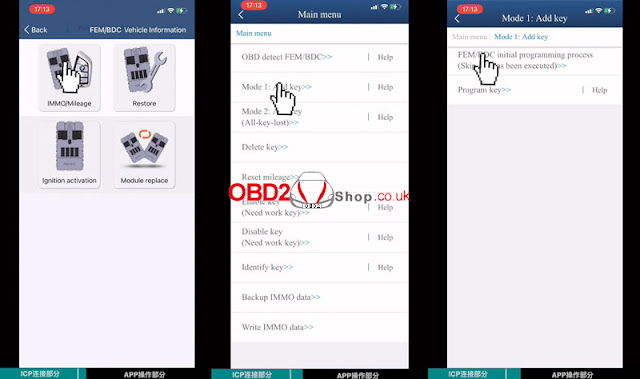
Mini ACDP >> BMW >> FEM/BDC >> IMMO/Mileage >> Mode 1: Add key >> FEM/BDC initial programming process(Skip if it has been executed) >> Method 1: Automatic ICP programming(recommended)


Check FEM/BDC device information.

OK >> Yes

add-bmw-fem-bdc-key-via-yanhua-mini-acdp-3

add-bmw-fem-bdc-key-via-yanhua-mini-acdp-4

add-bmw-fem-bdc-key-via-yanhua-mini-acdp-5

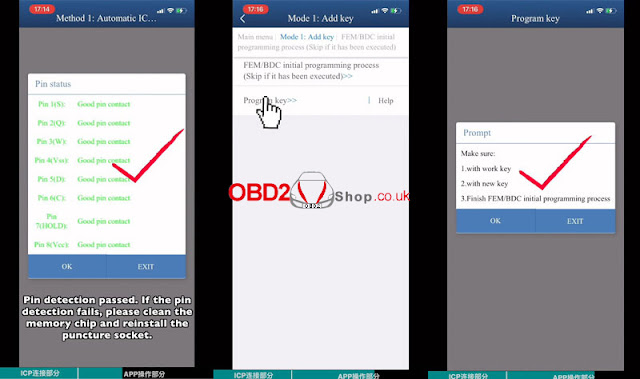
Pin detection passed. Click “OK” to continue.

If it failed, clean the memory chip & reinstall the puncture socket.


It’ll show coding, EEPROM & mode data storage path.

Preprocess will take about 5-20 minutes, please wait and don’t do anything...

Successful function execution.


Program key >> OK

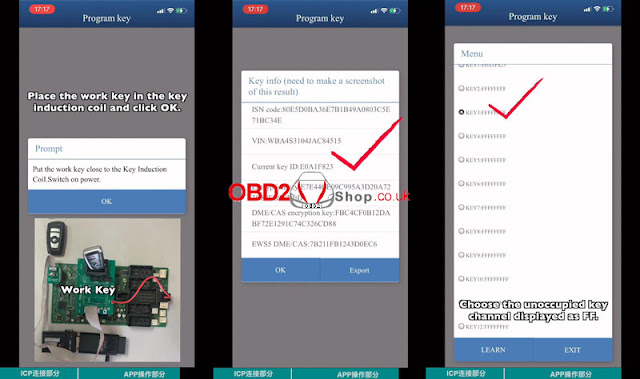
Place the working key into key induction coil, click “OK”.

Save the key info screenshot.

Select a blank key position, click “Learn”.

Remove the working key and put into the new key instead.

Learning key, please wait...

Program ignition key succeeded.


Check the menu, new key has been successfully learned in position key3.

Done!

add-bmw-fem-bdc-key-via-yanhua-mini-acdp-6

add-bmw-fem-bdc-key-via-yanhua-mini-acdp-7

add-bmw-fem-bdc-key-via-yanhua-mini-acdp-8

http://obd2eshop.over-blog.com/how-to-add-bmw-fem/bdc-key-via-yanhua-mini-acdp-5.html