Wednesday, 8 March 2023

Yanhua ACDP read IMMO data for Audi A4/A5/Q5 (BCM2 encrypted) by ICP

Yanhua recently released ACDP module 29: Audi Gen5 BCM2 IMMO Module, which supports adding keys and all keys lost for Audi A4/A5/Q5 2013-2018 and other models. Support adding keys for Audi A6/A7/A8 2013-2019 and other models.


This article will take Audi A4/A5/Q5 BCM2 encrypted as an example to show you how to use the ACDP+29 module to read IMMO data via ICP.


Select "VW" on the ACDP APP interface and enter "Audi 5th BCM2 IMMO".

yanhua-acdp-read-audi-a4-a5-q5-bcm2-encrypted-immo-data-1

Step 1. OBD identify

yanhua-acdp-read-audi-a4-a5-q5-bcm2-encrypted-immo-data-2

Step 2. Get BCM2 IMMO data

yanhua-acdp-read-audi-a4-a5-q5-bcm2-encrypted-immo-data-3

yanhua-acdp-read-audi-a4-a5-q5-bcm2-encrypted-immo-data-4

Note: To begin this step, you need to connect the relevant equipment.


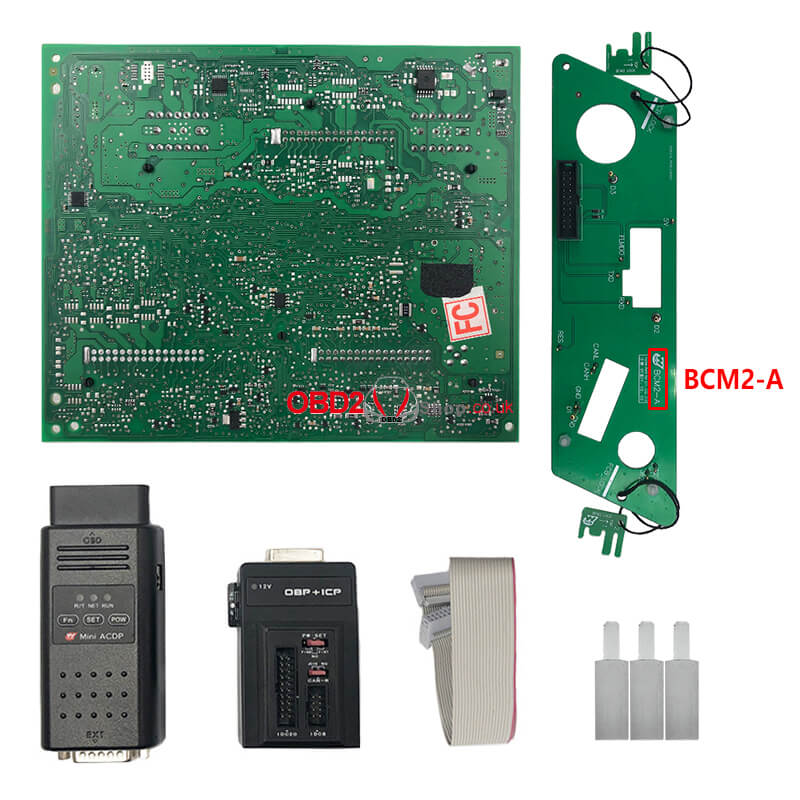
① Prepare ACDP, OBP+ICP adapter, BCM2-A interface board and BCM2 module.

yanhua-acdp-read-audi-a4-a5-q5-bcm2-encrypted-immo-data-5


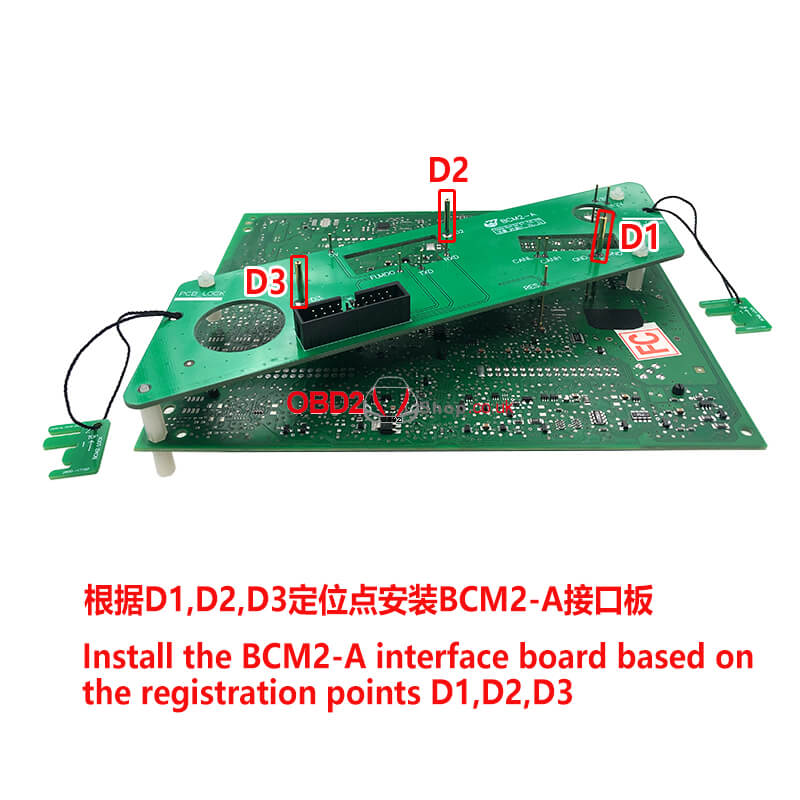
② Locate the D1, D2, D3 anchors on the BCM2 module.

yanhua-acdp-read-audi-a4-a5-q5-bcm2-encrypted-immo-data-6


③ Locate the probe test point location on the BCM2 module.

yanhua-acdp-read-audi-a4-a5-q5-bcm2-encrypted-immo-data-7

④ Install the interface board fixing studs.

yanhua-acdp-read-audi-a4-a5-q5-bcm2-encrypted-immo-data-8

⑤ Install BCM2-A interface board based on the registration point D1/D2/D3.

yanhua-acdp-read-audi-a4-a5-q5-bcm2-encrypted-immo-data-9

⑥ Lock the studs and clamp the PCB lock.

yanhua-acdp-read-audi-a4-a5-q5-bcm2-encrypted-immo-data-10

⑦ Short the jumper cap to the "CAN-R-NC" port according to the marked position.

yanhua-acdp-read-audi-a4-a5-q5-bcm2-encrypted-immo-data-11

⑧ Connect ACDP, OBP+ICP adapter, BCM2-A interface board and BCM2 module.

yanhua-acdp-read-audi-a4-a5-q5-bcm2-encrypted-immo-data-12

Step 3. Make dealer key


Prepare the BCM2 IMMO data obtained in step 2, and then put the blank key into the BAV-KEY adapter.

yanhua-acdp-read-audi-a4-a5-q5-bcm2-encrypted-immo-data-13

yanhua-acdp-read-audi-a4-a5-q5-bcm2-encrypted-immo-data-14

Step 4. OBD learn key

yanhua-acdp-read-audi-a4-a5-q5-bcm2-encrypted-immo-data-15

Done!


https://www.obd2shop.co.uk/


Tuesday, 21 February 2023

Can Yanhua Mini ACDP Module 24 Add 2022 Range Rover Key?

Generally speaking, the answer is yes. Yanhua Mini ACDP + Module 24 can support the program of JLR 2018+ new keys by OBD or replacing RFA. If you're not sure, here's a way to help identify the key.


Mini ACDP >> Jaguar/ LandRov >> Program smart key(2018-) >> Replace RFA program key >> Check whether support key programming: OBD identifies original RFA info

Follow the steps instructions in "Help" to identify.


Note:

1. Please connect ACDP with OBDII properly.

2. Please don't cut the power or pull out the device during the operation.

yanhua-mini-acdp-module-24-add-2022-range-rover-key-1

yanhua-mini-acdp-module-24-add-2022-range-rover-key-2

yanhua-mini-acdp-module-24-add-2022-range-rover-key-3

yanhua-mini-acdp-module-24-add-2022-range-rover-key-4

yanhua-mini-acdp-module-24-add-2022-range-rover-key-5

Technical Support

www.obd2shop.co.uk


Sunday, 29 January 2023

(Solution) Data lost with CAS4+ when using Yanhua Mini ACDP

Customer problem: I recently got data loss with cas3+ due to poor bluetooth transfer between android device and mini acdp, maybe this time I am lucky because this cas3+ is easy to fix and I wonder what I can do if I had a problem with cas4+ or female module...


Solution:


Situation 1. If CAS4/CAS4+ is interrupted in the middle and the coding is lost, the coding data can be restored and the vehicle can return to normal.


Steps:

Select "BMW">>"CAS1-4">>"CAS4/CAS4+">>"OBD Mode">>"IMMO Mileage">>"Recover Coding data".

data-lost-withcas4-when-using-mini-acdp-01

data-lost-withcas4-when-using-mini-acdp-02

data-lost-withcas4-when-using-mini-acdp-03

Note: Please connect ACDP to vehicle OBD port before recovering data.

data-lost-withcas4-when-using-mini-acdp-04

Situation 2. If there is an interruption while running FEM or BDC, please do not quit midway, wait for about 15 minutes and the wallpaper will run automatically. If the code is lost, the EEPROM data and coding data on the mobile phone can be reset, and the vehicle can return to normal.


Steps:

Select "BMW">>"FEM/BDC">>"IMMO Mileage">>"Mode 1: Add key">>"FEM/BDC initial programming process">>"Method 2: Manual single step operation".


Then choose "Step 6: Recover EEPROM Data" or "Step 7: Recover Coding Data" for data recovery.

data-lost-withcas4-when-using-mini-acdp-05

data-lost-withcas4-when-using-mini-acdp-06

data-lost-withcas4-when-using-mini-acdp-07

For more technical services of Yanhua acdp, please pay attention to http://blog.obd2shop.co.uk/

Yanhua ACDP + Module 3 Read DME ISN for BMW MEVD172P(N20)

Customer question:

Hi, I use Yanhua Mini ACDP + Module 3 can't read ISN from MEVD172P(N20) F-series controller with (p can) in OBD/CAN mode. What can I do?

yanhua-acdp-read-isn-for-bmw-mevd172p-n20-1

yanhua-acdp-read-isn-for-bmw-mevd172p-n20-2

Solution:

You need to use BENCH mode to read the ISN for your car.

The following is the operation guide:


1. Select "BMW" >> "DME ISN" >> "BENCH Mode Read/Write DME ISN" >> "BOSCH DME" >> "Fxx" , then select "Help" in N20 (MEVD172P) to connect the device.

yanhua-acdp-read-isn-for-bmw-mevd172p-n20-3

yanhua-acdp-read-isn-for-bmw-mevd172p-n20-4

yanhua-acdp-read-isn-for-bmw-mevd172p-n20-5

2. Please prepare ACDP, OBP+ICP adapter, interface board, and DME.

yanhua-acdp-read-isn-for-bmw-mevd172p-n20-6

3. Connect the interface board correctly to the DME interface as shown.

yanhua-acdp-read-isn-for-bmw-mevd172p-n20-7

4. Short the CAN resistor on the OBP + ICP adapter to the "CAN-R Join".

yanhua-acdp-read-isn-for-bmw-mevd172p-n20-8

5. Connect ACDP, OBP+ICP adapter, interface board and DME.

yanhua-acdp-read-isn-for-bmw-mevd172p-n20-9

6. After the connection is completed, go back to the previous interface, select N20 (MEVD172P), and follow the prompts to read and write.


For more technical support on Yanhua Mini ACDP, please follow http://blog.obd2shop.co.uk/

Sunday, 20 November 2022

Yanhua Mini ACDP + Module 27 Read BMW MSV90 DME ISN

Yanhua Mini ACDP + Module 27 supports reading, writing, and cloning BMW E/F chassis ISN without having to open the DME shell. Apply to MSV80, MSD80, MSD81, MSD85, MSD87 MSV90 Continental/ SIEMENS DME types.


This is reading BMW MSV90 DME ISN on the bench as an example, follow the post carefully to learn how to do it. To check the connection diagram, please click "Help".


Check the full video to learn:


Accessories

BMW MSV90 DME Module

MSV90 interface board

20PIN cable

ACDP host

OBD+ICP adapter


Install the MSV90 interface board.

Short the CAN resistor on the OBP+ICP adapter to the CAN-R-Join side.

Connect the MSV90 DME & ACDP host.

yanhua-mini-acdp-module-27-read-bmw-msv90-dme-isn-1

yanhua-mini-acdp-module-27-read-bmw-msv90-dme-isn-2

Operation

Mini ACDP >> BMW >> DME ISN >> BENCH Mode read/write DME ISN >> SIEMENS/Continental DME >> Fxx >> N52(MSV90) >> Read ISN >> Continue


Confirm the system info and save the screenshot.

Please take a screenshot and export the ISN data.


Export >> Save >> OK

ISN data is exported successfully.

Reading ISN data finished.

yanhua-mini-acdp-module-27-read-bmw-msv90-dme-isn-3

yanhua-mini-acdp-module-27-read-bmw-msv90-dme-isn-4

yanhua-mini-acdp-module-27-read-bmw-msv90-dme-isn-5

yanhua-mini-acdp-module-27-read-bmw-msv90-dme-isn-6


www.obd2shop.co.uk

Wednesday, 16 November 2022

Yanhua Mini ACDP Program JLR(2015-) KVM Add Key/All Keys Lost

This is a tutorial on using Yanhua Mini ACDP + Module 9 to program Land Rover 2010-2019 KVM add key & all keys lost. Users can click "Help" in app to check the connection info.


Normally, Land Rover's KVM module is at the left side or right side of the vehicle trunk. Jaguar's KVM is at the right side of the rear seat or in the front of the passenger seat.


Preparation

Blank key

BAV-KEY adapter

KVM interface board

ACDP host

Copper pillar

OBP+ICP adapter

20PIN cable

KVM module


1.Install the copper pillar, align D1-D4 test points. As long as the 4 test points are aligned, then all test points are aligned.

2.Lock the board with PCB lock & copper pillar. Connect the OBP+ICP adapter & KVM interface board. 

3.Connect the adapter & ACDP host, power up ACDP.

yanhua-mini-acdp-program-jlr-2015-kvm-key-1

yanhua-mini-acdp-program-jlr-2015-kvm-key-2


Operation

Mini ACDP >> Jaguar/ Land Rover >> ICP Add key/All key lost(2015-) >> KVM ICP(MC9S12XEQ384) >> Add key auto mode


Note:

1.Please prepare the OBP+ICP adapter, KVM interface board, KVM module, BAV adapter and blank key.

2.Save the original EEPROM, DFLASH data& the ones after programming the keys according to the software prompt.

3.ACDP device is forbidden to be powered off during the process of adding a key, otherwise it will cause the key to fail to be added.


Precautions:

1.Ensure the well connected for ACDP device, OBP+ICP adapter, KVM interface board & KVM module.

2.Follow the software prompts to save the chip data read from KVM module.


Pin detection passed. If the detection fails, please check and clean the test points.

Press "Continue".


It is detected that the KVM module chip has been encrypted. Press "Continue".

Please save the original PFLASH data of the KVM module.

Please save the original EEPROM data of the KVM module. 

Please save the original DFLASH data of the KVM module.

yanhua-mini-acdp-program-jlr-2015-kvm-key-3

yanhua-mini-acdp-program-jlr-2015-kvm-key-4

yanhua-mini-acdp-program-jlr-2015-kvm-key-5

yanhua-mini-acdp-program-jlr-2015-kvm-key-6

Check the VIN number and other vehicle info, press "Continue".

Note:

1.To maintain the ACDP device power-on state, first disconnect the OBP+ICP adapter from the ACDP device(keep the OBP+ICP adapter, KVM interface board and KVM module connected).

2.Then connect the ACDP device to the BAV-KEY adapter and place the programming key correctly on the BAV-KEY adapter.

Current key ID: 822D4E37


Choose the unoccupied key ID displayed as 000: Key3

Please save the EEPROM data of the KVM module after adding the key.

Please save the DFLASH data of the KVM module after adding the key.


Note:

1.Keep the ACDP device powered on. First disconnect the BAV-KEY adapter from the ACDP device.

2.Then connect the ACDP device, OBP+ICP adapter, KVM interface board and KVM module to ensure normal communication.

Continue >> Continue

Check the IMMO info. As you can see, the new key ID is in the key list.

Writing chip...

Adding the key completed.

Please install KVM module to the car and confirm that the new key can be used normally!

OK >> OK


This is how to use Mini ACDP JLR KVM Module for key programming.

yanhua-mini-acdp-program-jlr-2015-kvm-key-7

yanhua-mini-acdp-program-jlr-2015-kvm-key-8

www.obd2shop.co.uk


Sunday, 30 October 2022

Fixed: Yanhua Mini ACDP WiFi Connection Fails When Binding

Problem: My new Yanhua Mini ACDP is unable to bind in app, it prompted: "WiFi connection fails. Please check the phone is WIFI connection and whether the WiFi name and password are correct. Then retry the initial use settings."


I'm sure the WiFi name and password are all correct. 

What's the reason? Any advises?

fixed-yanhua-mini-acdp-wifi-connection-fails-when-binding-1

Solution

Modify the WiFi name to be shorter. Then try again. Cause Mini ACDP may fail to identify in case WiFi name is longer.

fixed-yanhua-mini-acdp-wifi-connection-fails-when-binding-2

Hope this is helpful.


Technical support

www.obd2shop.co.uk